

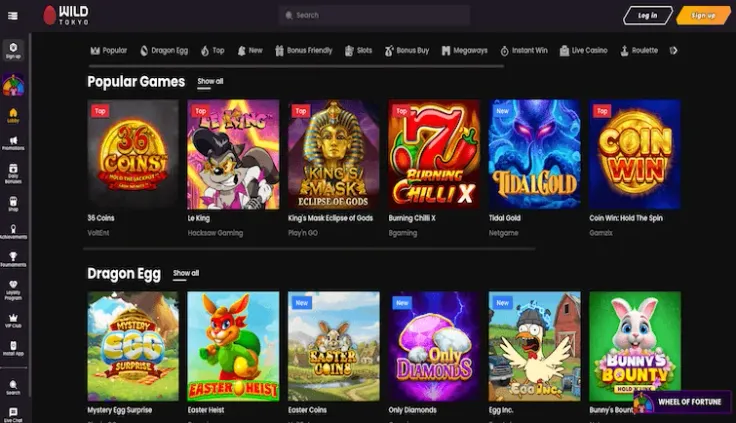
To log in to Wild Tokyo, open the Wild Tokyo website in your browser and sign in with the email or username and password you registered with. The steps above set out the order, and this page covers what stands behind them and what to do when a sign-in does not work. Have your registration email or username and your password to hand before you start. If you have not created an account yet, read the sign up guide first. This site has no login form, so you enter your details only on Wild Tokyo's own website.
Two things are worth settling before you open the site. First, which device you will use, since a sign-in on a phone is easier if the browser has the site saved in a place you can find again. Second, where your password is stored. If you rely on memory, a sign-in is quick; if you rely on a manager, make sure it is unlocked.
What stands behind the login steps

Logging in is the simple part of an account. What takes more thought is everything that comes before it: registration, and the identity verification that Wild Tokyo requires. When you sign up, you create the account in your own name, with an email or username and a password you choose. The login steps then use exactly those details, so keep a note of which email address and username you registered with. A mismatch there is behind many failed sign-ins.
Verification is a separate step from logging in, and it is required at Wild Tokyo. The documents involved are Photo ID, Proof of address, Proof of payment method ownership and Proof of deposit. You do not need them to see the login screen, but you should expect to be asked for them, so having clear copies ready saves time. The verification guide covers the process, including what makes a document easy to accept and what tends to cause a rejection.
You can log in from a computer or from a phone. There is no iPhone or Android app, so the options are the full website on a desktop and the mobile site in a phone browser. The sign-in works the same way on both, which is why the steps above do not split them. The mobile guide explains how the site behaves on a phone, and it is worth reading if you plan to use one.
Age is the one rule that applies from the start: Wild Tokyo is for adults, and you must be 18 or over to hold an account. The login steps do not change because of it, but the account details you registered with need to be your own and need to be accurate, because they are what the verification documents are checked against.
Support is available through live chat and email, and the support hours are 24/7. That matters for login problems, because a sign-in that fails for a reason you cannot see yourself is a job for support, not for repeated attempts. When you contact support, describe what you see and give the email address you registered with, and do not send your password.
18+ · T&Cs apply
Common login problems and what to do

A forgotten password is the most common one. Use the password reset option on the login screen of the Wild Tokyo website. Follow the prompts there, and use the same email address you registered with. If you do not receive what you expect, check that the address is the right one and look through the folders of your email account, then contact support.
A password that is rejected is often a typing issue. Check that caps lock is off, that the keyboard layout is the one you expect and that no extra space has been added at the end. If your browser or a password manager fills in the field for you, check that it has saved the current password and not an old one.
A login that asks for an email when you remember a username, or the reverse, points to a mismatch between what you registered and what you are typing. Try the other form. If neither works, ask support to confirm which one is on the account.
If the page does not load or behaves oddly, try a different browser or the mobile site, and check your connection. Make sure you are on Wild Tokyo's own website, not a copy of it. A page that asks for anything beyond your login details is a reason to stop.
A document that is rejected is a verification problem, not a login problem. The usual causes are an image that is blurred, cropped or out of date, or a name that does not match the account. Upload a clear, complete copy, and if it is rejected again, ask support what the issue is.
If you have tried a reset and a different browser and the sign-in still fails, stop trying new passwords. Repeated attempts do not help, and the quickest route is to give support the details of what you tried. Write down the email address you used, what you saw on the screen and roughly when it happened, and send that through live chat or email.
Contact support through live chat or email when a reset does not work, when you cannot tell why a sign-in fails or when a verification document keeps being rejected. Support hours are 24/7.
Keeping your account safe

Enter your password only on Wild Tokyo's own website. This site never asks for it, and neither should any message or page that claims to speak for Wild Tokyo. Use a password that you do not use anywhere else, and a password manager if you have one.
Log out when you finish on a shared or public device, and do not save your details in a browser that other people use.
Check the address bar before you type your password. It should show Wild Tokyo's own address, which you can reach by typing it in or by using a bookmark you made yourself. A link in a message is not a safe way to arrive at a sign-in screen.
Keep your verification documents ready and in a place you control, so that you can respond to a request quickly without hunting through old files.
It is also worth using the tools the account offers to stay in control of your play. If the account offers deposit limits or time-outs, set them before you start, not after. The sign up guide covers creating the account.